
Site Structure
The site structure allows site managers to have an overview of their site as a “site map” providing information on all the pages and their URL as well as how the site is organized in sections or sub-sections.
The site structure is a place where site managers expect to be able to take actions on pages:
- Create new page
- Edit existing page
- Delete (or archive) existing page
- Preview or view existing page
- Reorganize the structure
- See which changes happened within a given workstream
- Access versions
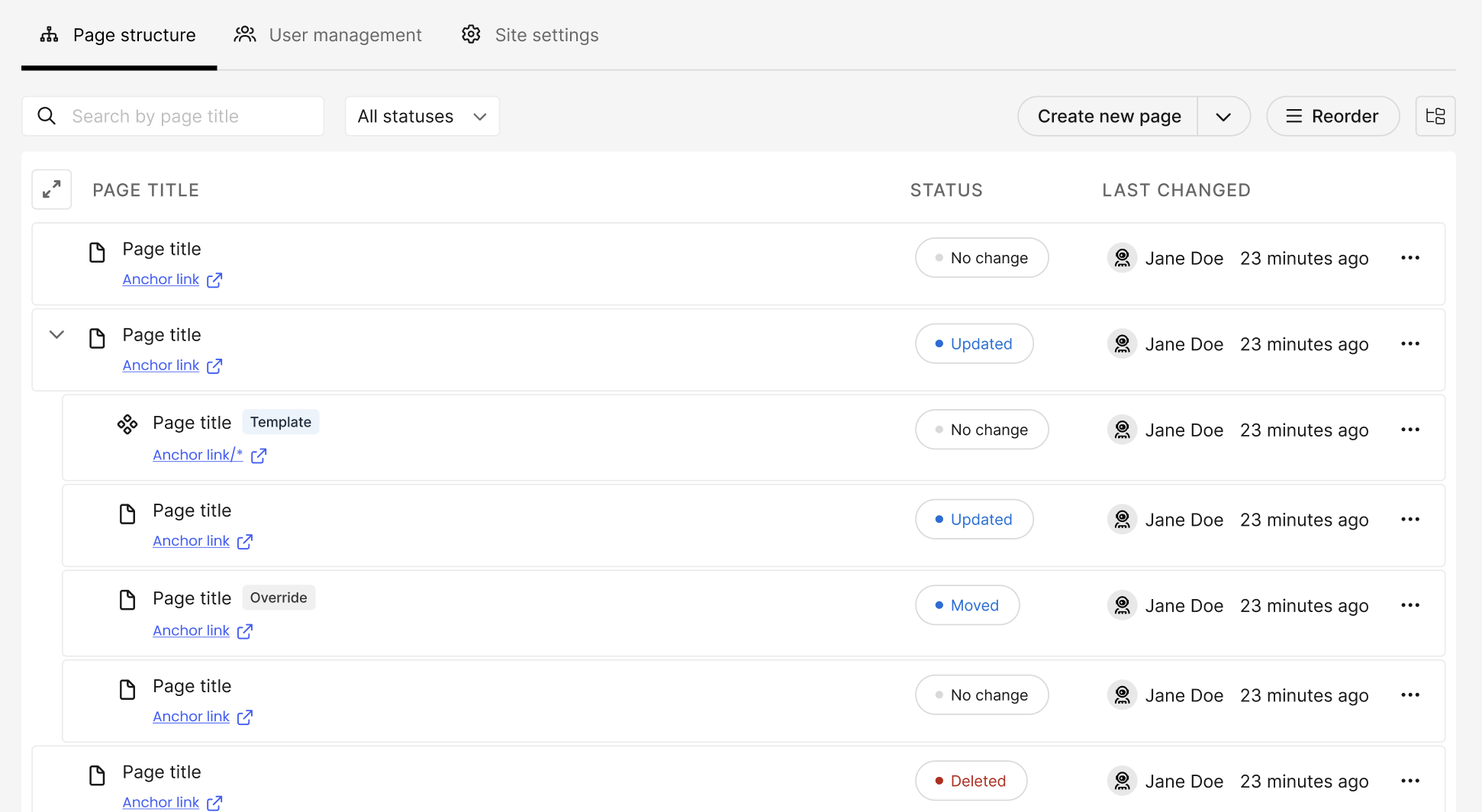
Elements of the Site Structure
P1 pages
Pages are editable in P1 visual editor and their content is stored and managed in P1 CRR.
Pages all have a fixed route to be accessed by the visitors.
The route is defined by the location in the site structure and their slug.
Ex:
- Page title: Go Live Conference
- Slug: go-live
- Location: events section, US sub-section
htts://mysite.com/events/us/go-liveWhen site managers are creating pages, they create it at the root of the site or under a section and first provide page names and slug then editing the page visually in the P1 visual editor.
P1 sections
Sections can be defined in the site structure to organize the site with different levels. A section by itself does not make the route available. Example: if a News section is created at the root of https://mysite.com , the route https://mysite.com/news will not render any page, by default it will render a 404.
A folder is simply defined by a name and a system name. System name is automatically created from the name but site managers can further edit the name without editing the system name.
If the site manager wanted to use the route corresponding to a section to render for instance a navigation page for that section, she simply should create a page with a slug matching the section system name.
P1 templates
Templates are used to display dynamic content managed in a data source separated from the page. The datasource could be:
- Simple content repository managed in P1 sites
- Remote content managed in Content Publisher repository
- Remote data managed in a headless system access through API access (GraphQL)
When a site manager creates a template, she’ll provide the name of the template, the route of the template and the slug to be used to match the content to be retrieved from the data source.
Ex:
- Template name: People.
- Route: /company/leadership
- Slug: /:name
The site manager will first provide these elements to create the template, and then will be redirected to the visual editor to create the layout of the template as well as possibly refining the template name and slug. This will include choosing the datasource and the query to use for retrieving the data.
The template will show on the site structure as:
htts://mysite.com/company/leadership/:name
On the site itself, all dynamic content will be available following this url pattern
Example:
- https://mysite.com/company/leadership/john-doe
- https://mysite.com/company/leadership/jane-bee
- …
Dynamic content elements are not shown on the site structure.
Index and navigation pages for dynamic content
When using templates, site managers usually want to build an index page that would provide a way to access all the pages of the datasource. Typically https://mysite.com/company/leadership/ could provide a list of all the persons being in the leadership directory of the company (a remote data source).
The way to do so is simply by creating a page at the desired location that will use a navigation component connected to the desired data source. There is no constraint on the location of the page or on the route, the site manager has full freedom to organize the site structure the way she wants it.
Conflicts and overrides
Conflicts
In the case a template would be created on a route that conflict with a regular page, the regular page will have priority:
Example:
- Configuration:
a template defined at https://mysite.com/company/leadership/:name. - a regular page (eg. P1 page) created at https://mysite.com/company/leadership/janedoe.
- a record in the datasource used by the template with name=janedoe
In this case, when a visitor will hit https://mysite.com/company/leadership/janedoe, it is the regular page that will be delivered by P1.
Overrides
When rendering the content of a remote datasource with a template, it is possible to override the display of the template for a specific content and page.
Example:
- The template https://mysite.com/company/leadership/:name defines how leadership member pages are layed out, all pages using the same layout.
- Site managers can decide to override the page for a specific person, for instance for https://mysite.com/company/leadership/steve , the site manager can click on override and adjust the layout with adding or removing components from the visual editor.
- When doing so, P1 is actually creating a new P1 page initialized with all the components of the dynamically templated page, following the rule described above, this page will be the one rendered when requested by visitors.
Following the same logic, if before creating a template, a regular page would exist on one of the route possibly used by the template, that static page could be modified to use dynamic components connecting to the datasource.
Notifications
When creating a template on a route that might be used by an existing page, the site manager is notified about the possible conflicts.
⚠️ Existing Content
There’s already a page created on one URL that could be used by your template:
https://mysite.com/company/leadership/steve
This won’t generate error but visitors won’t have access to the corresponding dynamically generated content.
When creating a page on a URL that is used by an existing template and for which there is content existing on the same slug:
⚠️ Overriden Content
There’s already a page rendered by a template at this URL: https://mysite.com/company/leadership/steve
Creating this new page won’t generate an error but will override that content.
When creating a page on a URL that is used by an existing template and for which there is no conflict yet, but there could be in the future:
⚠️ Overriden Content
You’re creating a page that might create a conflict with a template at the url https://mysite.com/company/leadership/
Creating this new page won’t generate an error but could override remote data used by the template in the future.
Site structures and workstream
Site structures are core part of a site content, and therefore are manageable within site workstreams. When a site structure is modified, it is either in a given workstream or forced to the live site.
As for regular content elements, site structure versions can then be compared visually to identify the differences and possible conflicts between versions.